One of the common email problems folks have is opening PowerPoint (or .pps and .ppt) attachments. There's a lot of cool stuff in PowerPoint format which is often forwarded to others via email, but if you don't have PowerPoint on your computer, you can't open the attachments.
Luckily, Microsoft provides an easy fix for this problem. You can download and install a free PowerPoint Viewer from the Microsoft website. This viewer will allow to view and print PowerPoint presentations, but not create or edit them. For most folks, this is fine.
You can get the PowerPoint viewer by clicking here, or by searching "PowerPoint viewer" in Google.
It's also worth noting that Microsoft also provides free viewers for Word and Excel which you can download and install. Again, these viewers allow you to open, view and print Word and Excel documents (but not create or edit them).
You can get the Word Viewer by clicking here.
You can get the Excel Viewer by clicking here.
Keep in mind that if you already have Microsoft Word, Excel or PowerPoint installed on your computer, then you don't need to download and install the viewers.
Some new computers come with the PowerPoint viewer already installed, so it's a good idea to check your programs list before downloading and installing it.

Saturday, December 13, 2008


Friday, December 12, 2008
How to Insert Pictures into Word
Tis the season that everybody is writing their Christmas letters to friends and family. While I'm sure everybody appreciates the "year in review" letters, how about adding some pictures to spice them up a bit. As they say, pictures are worth a 1,000 words ...
Below are the steps on how to add pictures to Microsoft Word documents. The steps are similar for adding images to other documents as well (like Works and Word Perfect), although the options to format the picture may be different.
The first step is to open the document that you wish to insert the picture into.
Then on the menu, select INSERT, then PICTURE, then FROM FILE (note you could add a pictures from clipart too). Browse to find the picture you want to insert and ready, click it and click the INSERT button.
The next step is to position the picture where you’d like it to appear. To do this, double left click the picture to open the Format Picture window.
On the new window, click the LAYOUT tab and then click the TIGHT box. Click the OK button to close window.
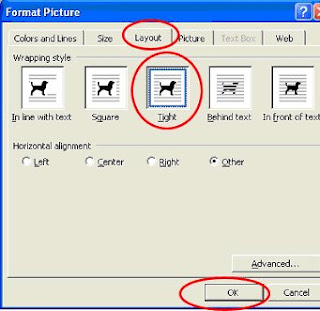
Now you can drag the image wherever you like, by holding the left mouse button down and dragging the image. Release the buttons to leave the image where it is.
Notice that text will wrap around the image with the “tight” setting. You have other options in the Format Picture window if you don’t want this. You may also have to hit the carriage return (or Enter key) to move the text so it looks right on the page.
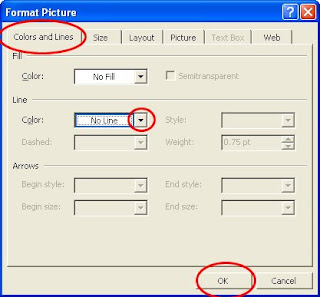
Feel free to experiment with the options in the Format Picture window. If you click the COLORS and LINES tab, you can add a border around the image (to frame it) if you like. In my experience, this option is not available until you follow the steps on the Layout tab first.
Below are the steps on how to add pictures to Microsoft Word documents. The steps are similar for adding images to other documents as well (like Works and Word Perfect), although the options to format the picture may be different.
The first step is to open the document that you wish to insert the picture into.
Then on the menu, select INSERT, then PICTURE, then FROM FILE (note you could add a pictures from clipart too). Browse to find the picture you want to insert and ready, click it and click the INSERT button.
The next step is to position the picture where you’d like it to appear. To do this, double left click the picture to open the Format Picture window.
On the new window, click the LAYOUT tab and then click the TIGHT box. Click the OK button to close window.

Now you can drag the image wherever you like, by holding the left mouse button down and dragging the image. Release the buttons to leave the image where it is.
Notice that text will wrap around the image with the “tight” setting. You have other options in the Format Picture window if you don’t want this. You may also have to hit the carriage return (or Enter key) to move the text so it looks right on the page.
Feel free to experiment with the options in the Format Picture window. If you click the COLORS and LINES tab, you can add a border around the image (to frame it) if you like. In my experience, this option is not available until you follow the steps on the Layout tab first.

Thursday, December 11, 2008
Create Labels & Other Things
You've probably been buying Avery products for years, but did you know that Avery has free software and templates you can use too?
Avery creates free templates you can download and use to create labels. They also have an online section where you can create your own labels on the internet and then print them on your computer.
Many of these templates are created in Microsoft Word so they are easily editable. But if you don't have Word, you can download and installed their free program called, Avery Design Pro.
Did I mention these these things are free?
Check out the link below for more information about Avery's products and options.
http://www.avery.com/avery/en_us/Templates-%26-Software
To learn how to print Avery labels online, click here.
Avery creates free templates you can download and use to create labels. They also have an online section where you can create your own labels on the internet and then print them on your computer.
Many of these templates are created in Microsoft Word so they are easily editable. But if you don't have Word, you can download and installed their free program called, Avery Design Pro.
Did I mention these these things are free?
Check out the link below for more information about Avery's products and options.
http://www.avery.com/avery/en_us/Templates-%26-Software
To learn how to print Avery labels online, click here.
Wednesday, December 10, 2008
Christmas with a Capital "C"
Normally I'd only share computer related information on this blog, but I just had to share this cool video and song that I came across yesterday. Enjoy!
Uninstalling Programs in Vista
One of the differences between Windows Vista and Windows XP is the name of some of the icons in the Control Panel. In Windows XP, there was an icon called, "Add or Remove Programs". While that icon still exists in Vista, the name has been changed to "Programs and Features".
So now when you want to uninstall a program in Windows Vista, you'll have to click on the "Programs and Features" icon in the control panel first. The window that comes up looks basically the same as the old one in XP. And the process for uninstalling a program is pretty much the same.
Scroll down the list until you find the program you want to uninstall and then highlight it (single click). Then click the UNINSTALL button near the top of the window and follow the rest of the prompts (if any).
That's all there is to it.
So now when you want to uninstall a program in Windows Vista, you'll have to click on the "Programs and Features" icon in the control panel first. The window that comes up looks basically the same as the old one in XP. And the process for uninstalling a program is pretty much the same.
Scroll down the list until you find the program you want to uninstall and then highlight it (single click). Then click the UNINSTALL button near the top of the window and follow the rest of the prompts (if any).
That's all there is to it.
Monday, December 8, 2008
How to Find Images & Clipart
Do you like to make your own greeting cards and other crafty projects? While programs like Print Master, Publisher, and others contain clipart, often times those images aren't "just right" for the project you're working on. Wouldn't it be nice if you could always find that "perfect" image for the project you're working on?
Well thanks to the internet, you may be able to. Google not only indexes web pages, but it also indexes images. And if the webmaster is doing their job when creating web pages, they're giving those images relevant names to help Google index the images ... and this helps you too!
Finding images in Google is really easy. Just type in keyword (like "Christmas images") and click the search button. When the results are returned, click the "images" link at the top of the page.

Now you're looking at only images (and not web pages). When you see an image you like, click it. When you do, the next window will be split in two halves. The top half contains a thumb nail of the image along with information about it. The bottom half contains the web page that the image is originally found on.
Most of the time, you'll only care about the top half of the window. This is the actual image, and after all, that's what we're looking for.
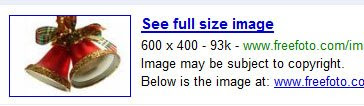 The image above is an example of the top half of the window. Notice the four lines of text. The second line of text tells you how big the image is. Looking at this info will tell you if the image will be large enough for your project. In this case, the image is 600x400 pixels - which is a good size. You can always reduce the size of the image if it's too large - but you can't enlarge it (or it will look blurry).
Most of the images you find on the internet are copyrighted. So you'll always see the third line of text on the image above. However, as long as you're using the images for your personal projects and not using them in commercial projects, I wouldn't worry too much about copyright.
The last line of text above tells you the web page that contains the original image. This information may or may not be useful to you, depending on your needs.
Keep in mind that the image shown next to the text is a thumbnail (i.e., a smaller version of the original). To see the full size image, click the thumbnail.
If you like the image, you can save it to your computer by RIGHT clicking on it, and selecting SAVE IMAGE AS. Note that there are times, when a web page may prevent you from RIGHT clicking on images - if that's the case, you can use the screen capture button on the keyboard to save the image.
Use the "back button" your browser to go back and search more images.
Keep in mind that when searching images, you may want to try a couple of different terms including, "images", "clipart", "graphics", and "photos".
You can be as specific (Christmas bells) or general (Christmas) as you like when searching. Sometimes you have to try searching a few different terms to narrow down your search.
Give it a try and have fun!
Well thanks to the internet, you may be able to. Google not only indexes web pages, but it also indexes images. And if the webmaster is doing their job when creating web pages, they're giving those images relevant names to help Google index the images ... and this helps you too!
Finding images in Google is really easy. Just type in keyword (like "Christmas images") and click the search button. When the results are returned, click the "images" link at the top of the page.

Now you're looking at only images (and not web pages). When you see an image you like, click it. When you do, the next window will be split in two halves. The top half contains a thumb nail of the image along with information about it. The bottom half contains the web page that the image is originally found on.
Most of the time, you'll only care about the top half of the window. This is the actual image, and after all, that's what we're looking for.
 The image above is an example of the top half of the window. Notice the four lines of text. The second line of text tells you how big the image is. Looking at this info will tell you if the image will be large enough for your project. In this case, the image is 600x400 pixels - which is a good size. You can always reduce the size of the image if it's too large - but you can't enlarge it (or it will look blurry).
 Most of the images you find on the internet are copyrighted. So you'll always see the third line of text on the image above. However, as long as you're using the images for your personal projects and not using them in commercial projects, I wouldn't worry too much about copyright.
The last line of text above tells you the web page that contains the original image. This information may or may not be useful to you, depending on your needs.
Keep in mind that the image shown next to the text is a thumbnail (i.e., a smaller version of the original). To see the full size image, click the thumbnail.
If you like the image, you can save it to your computer by RIGHT clicking on it, and selecting SAVE IMAGE AS. Note that there are times, when a web page may prevent you from RIGHT clicking on images - if that's the case, you can use the screen capture button on the keyboard to save the image.
Use the "back button" your browser to go back and search more images.
Keep in mind that when searching images, you may want to try a couple of different terms including, "images", "clipart", "graphics", and "photos".
You can be as specific (Christmas bells) or general (Christmas) as you like when searching. Sometimes you have to try searching a few different terms to narrow down your search.
Give it a try and have fun!
Monday, December 1, 2008
How to Take Capture Your Screen
One of the questions I get asked a lot is how to capture what you see on the monitor. The answer is simple and I wanted to share it here for everybody.
If you look at the keyboard, you'll see a key that reads, "Print Screen". This key is usually in the top row to the right of the numbers. All you need to do is press this key in order to capture the screen. The image is placed on the invisible clipboard and the next step is to paste it somewhere.
There are a couple of options for pasting the screen shot. You could open Microsoft Word or Works and paste the image in a blank document (EDIT > PASTE on the menu).
Another option would be to paste the image in a graphics program (like Paint, Paint Shop Pro, Adobe Photoshop, etc.). Pasting the image in a graphics editor allows you to easily crop and edit the image.
How to Capture the Active Window Only
If you don't want to capture the entire screen, you could use the ALT key in combination with the Print Screen key to capture the active window. This is nice when you want to capture an error message to send to somebody. To do this, simply, click the window you want to make active then hold down the ALT and PRINT SCREEN together.
After capturing the window, you can paste it into a blank document or graphics editor program.
If you look at the keyboard, you'll see a key that reads, "Print Screen". This key is usually in the top row to the right of the numbers. All you need to do is press this key in order to capture the screen. The image is placed on the invisible clipboard and the next step is to paste it somewhere.
There are a couple of options for pasting the screen shot. You could open Microsoft Word or Works and paste the image in a blank document (EDIT > PASTE on the menu).
Another option would be to paste the image in a graphics program (like Paint, Paint Shop Pro, Adobe Photoshop, etc.). Pasting the image in a graphics editor allows you to easily crop and edit the image.
How to Capture the Active Window Only
If you don't want to capture the entire screen, you could use the ALT key in combination with the Print Screen key to capture the active window. This is nice when you want to capture an error message to send to somebody. To do this, simply, click the window you want to make active then hold down the ALT and PRINT SCREEN together.
After capturing the window, you can paste it into a blank document or graphics editor program.
Subscribe to:
Posts (Atom)